Overview
Thank you for purchasing LicenseBox. If you have any questions or are looking for custom integrations, please feel free to send us an email at support@licensebox.app.
This documentation assumes that you have basic to intermediate knowledge of PHP. If you require assistance in integrating LicenseBox into your PHP or non-PHP application, we offer custom work solutions. Please reach out to us for further assistance.
First let's see what files and folders are there in the downloaded LicenseBox (.zip)
file:
. |-- documentation//LicenseBox documentation|-- licensebox//LicenseBox server/admin panel|-- licensebox_api_documentation//Swagger API documentation`-- licensebox_integration_samples |-- activate//Sample activator script| `-- index.php |-- deactivate//Sample deactivator script| `-- index.php |-- install//Sample installer script| `-- index.php |-- licensebox-wp-sample//Sample WP plugin with LicenseBox| |-- licensebox-wp-sample-options.php | `-- licensebox-wp-sample.php `-- update//Sample updater script`-- index.php
LicenseBox consists of two components: the main script/administrator panel, which is
installed and hosted on your own server, and a single .php file referred to as the
external/client helper file. This file must be integrated into the PHP application,
WordPress plugin, theme, or any other platform where you intend to use LicenseBox. Although
we officially support only PHP applications and plugins, you can still use LicenseBox in any
application that can make JSON/XML POST requests to your LicenseBox server,
thanks to the robust LicenseBox API. For more information about the API endpoints and
required parameters, refer to the licensebox_api_documentation folder.
So let's start with the main LicenseBox script/admin panel installation first, follow the steps given below:
Installation
- Copy/Upload all the files and folders which are inside the folder
(licensebox) to your web server using cPanel or FTP, if you want to install LicenseBox
on your root domain (like example.com) then you need to upload the
files directly in your root directory (/public_html/) or if you want to
install LicenseBox in a subfolder (like example.com/license), then
upload it in a folder (/public_html/license/).
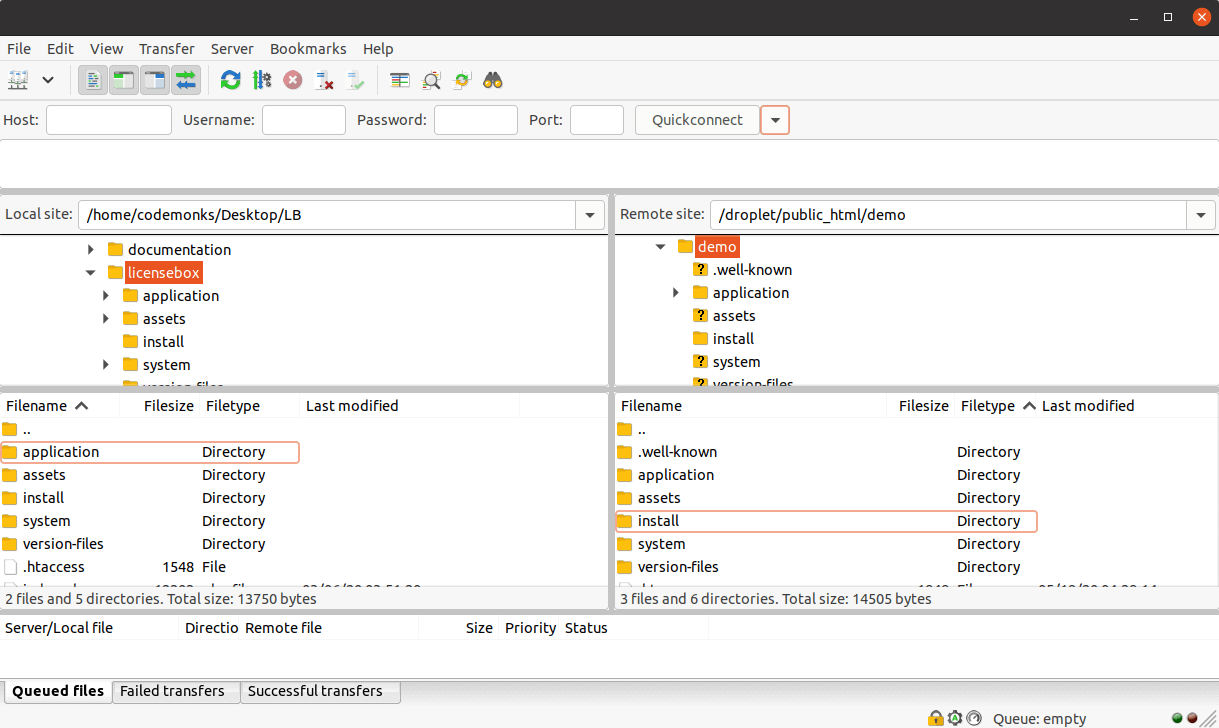
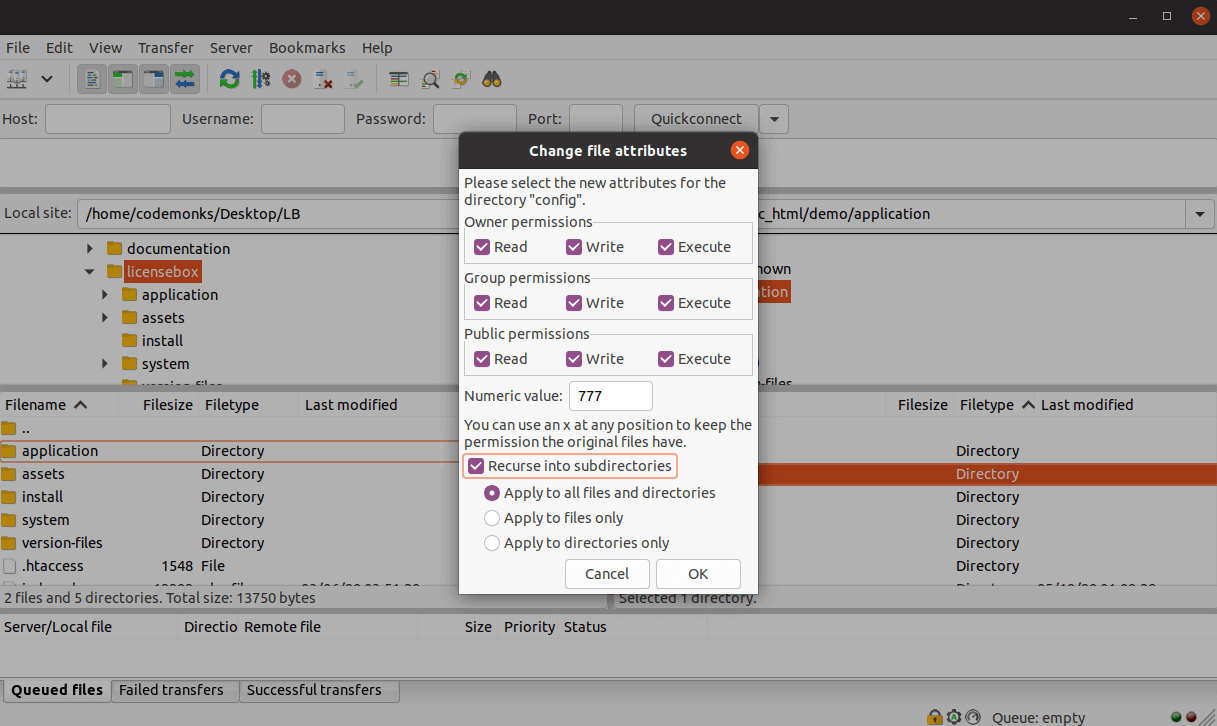
- The folder "config" (present inside application) and
"install" folder must have write permissions, so just
give the folders write permission (i.e 755).
- Once you are done with the above steps, go to your hosting control panel and create a mysql database, database user and grant relevant permissions to user for this database.
- Now go to the URL where you have uploaded LicenseBox like
www.yoursite.com/license
Note: Please don't upload the downloaded (.zip) file directly onto your server,
instead only upload the contents of the licensebox folder. The other
folders are useful during the actual integration into your application, which we
recommend you do first on your local machine only.
Minimum Requirements
-
You should now see the minimum system requirements checklist - If there are any issues with the checklist, you will need to fix that before you can proceed to the next step.
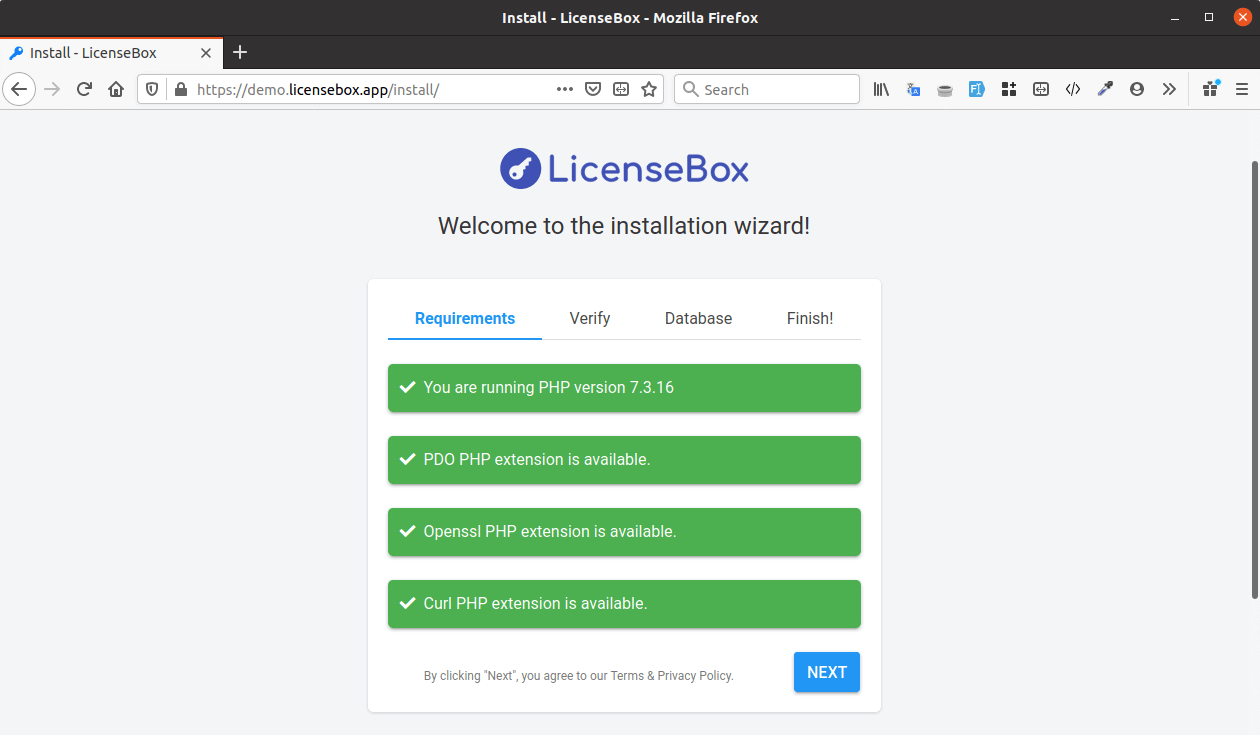
If everything is good, click next to proceed with the installation.
Verifying Purchase
-
Here you have to enter your Envato username, Item Purchase code and Email Address.
- Then click Verify, After successful verification you should see this
page.
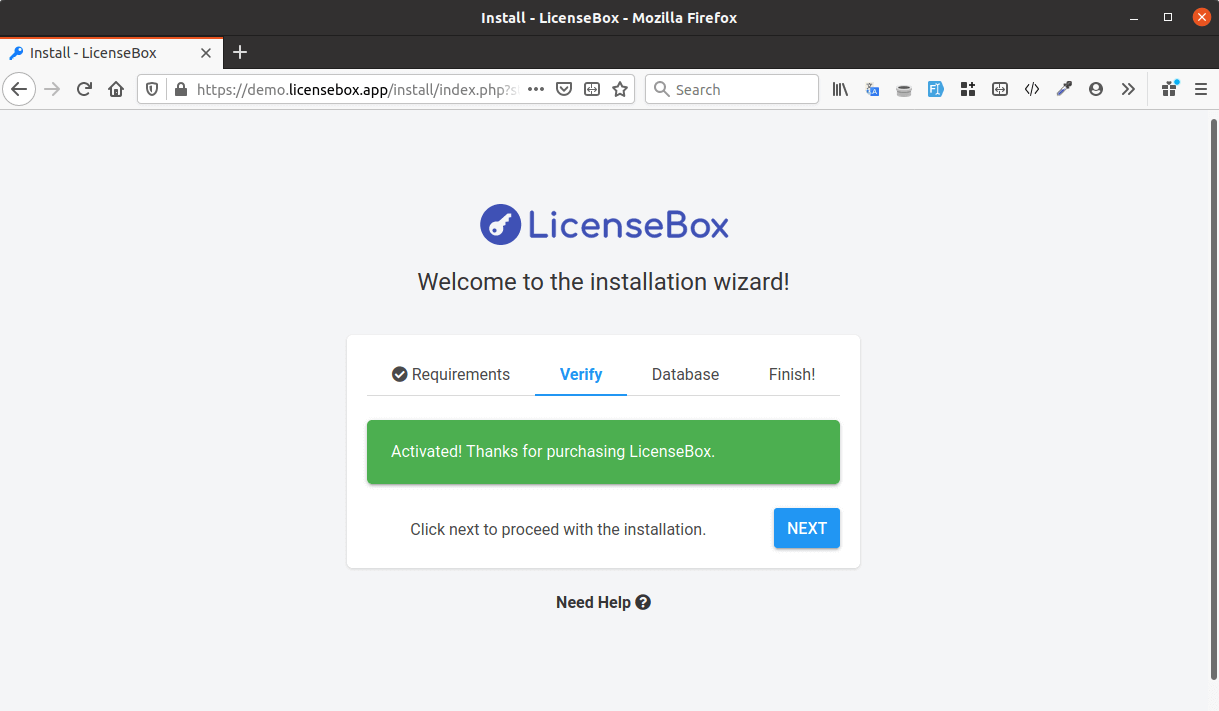
Where can I find my purchase code? please read this.
Click next.
Database Details
-
Enter your database host, database user, database password and database name. If the database you have entered does not exist, the system will try to create it. This might not work when your webhost does not allow creation of new databases. In that case only use the database you have created in earlier step.
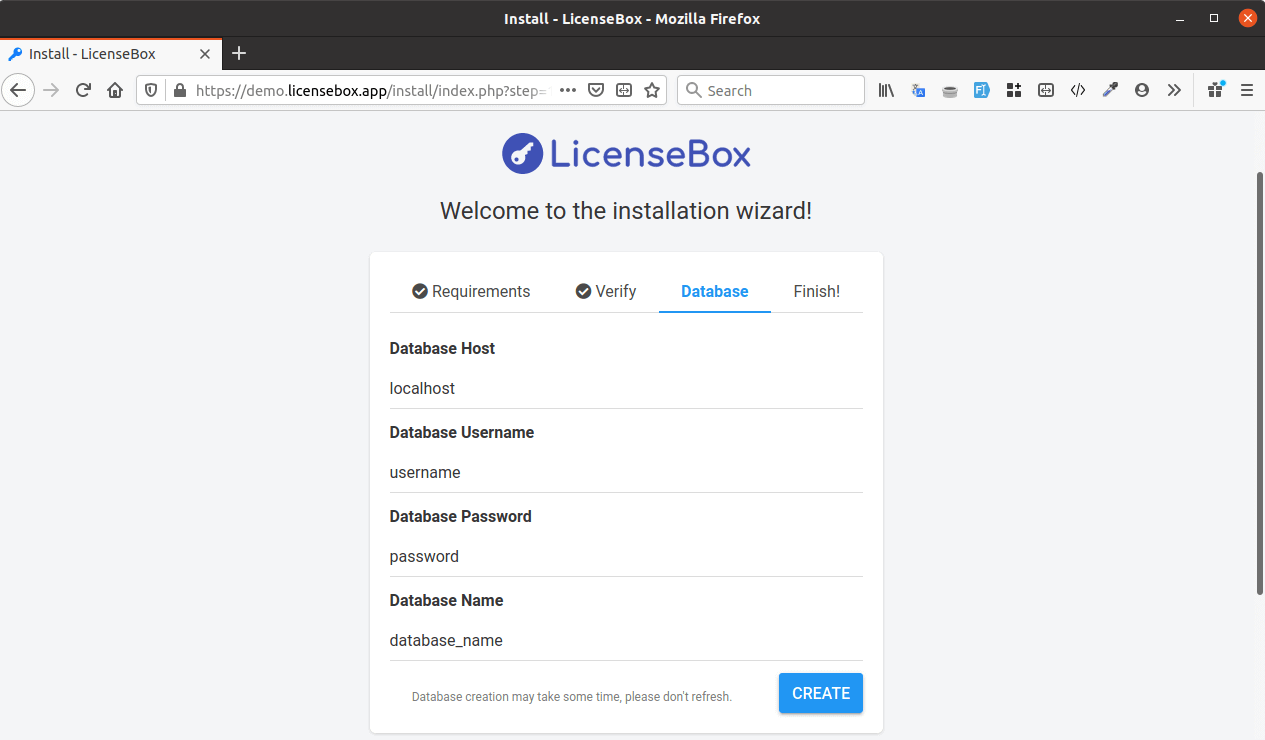
-
Then click Create, If everything goes well, you should see this page.
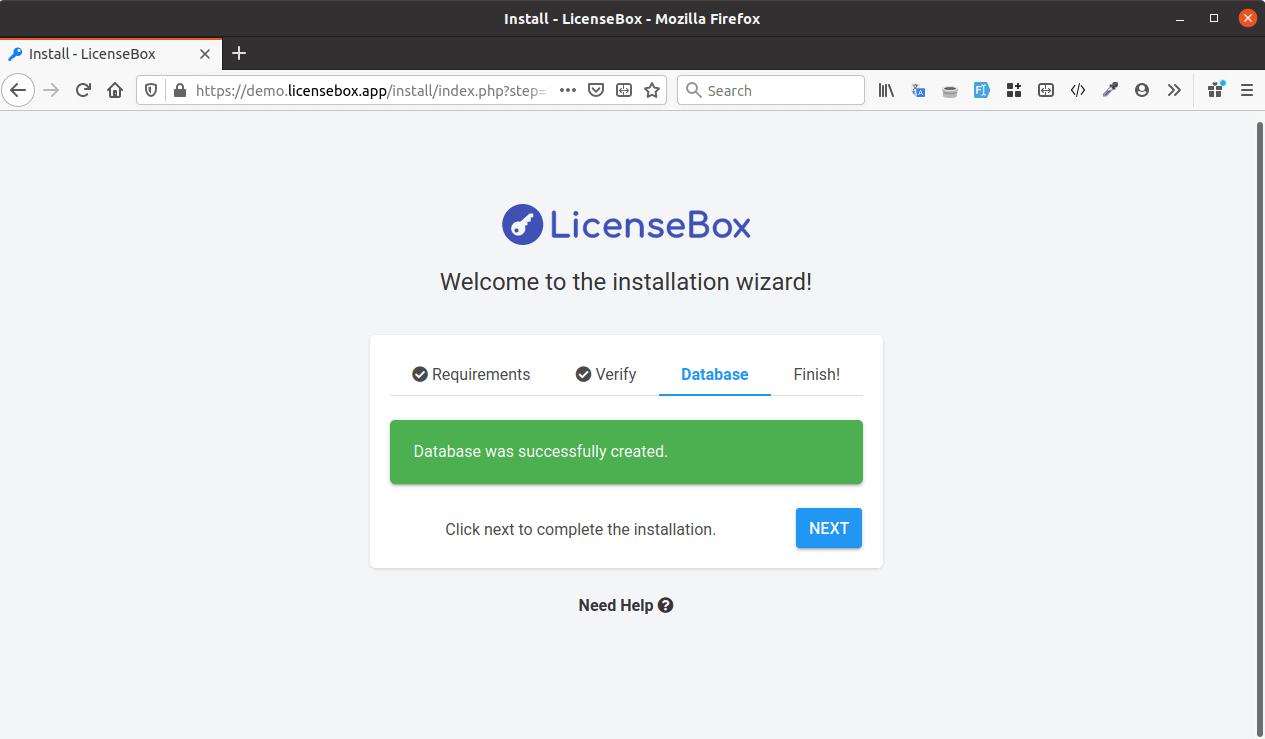
Click next.
Finish Installation
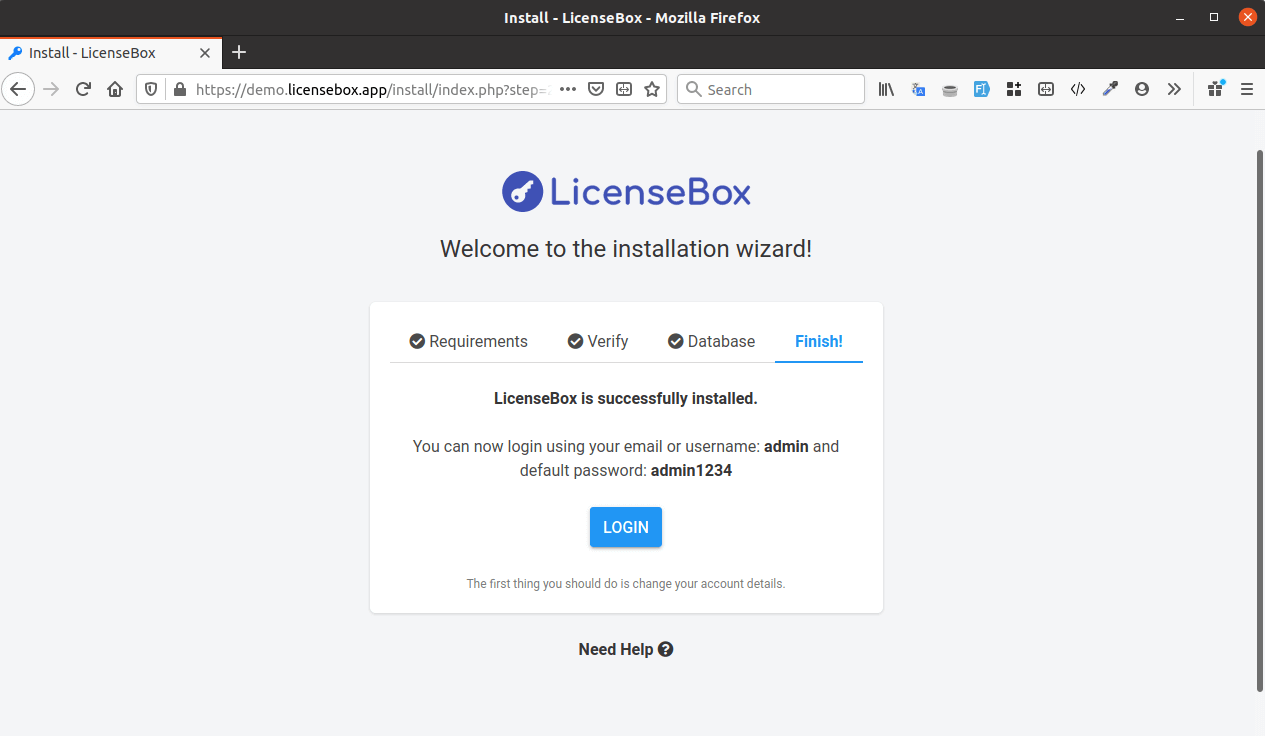
Congratulations! LicenseBox is successfully installed.
-
Now you can click on the "Login" button and log yourself in, using the default username (i.e admin) and password (i.e admin1234).
-
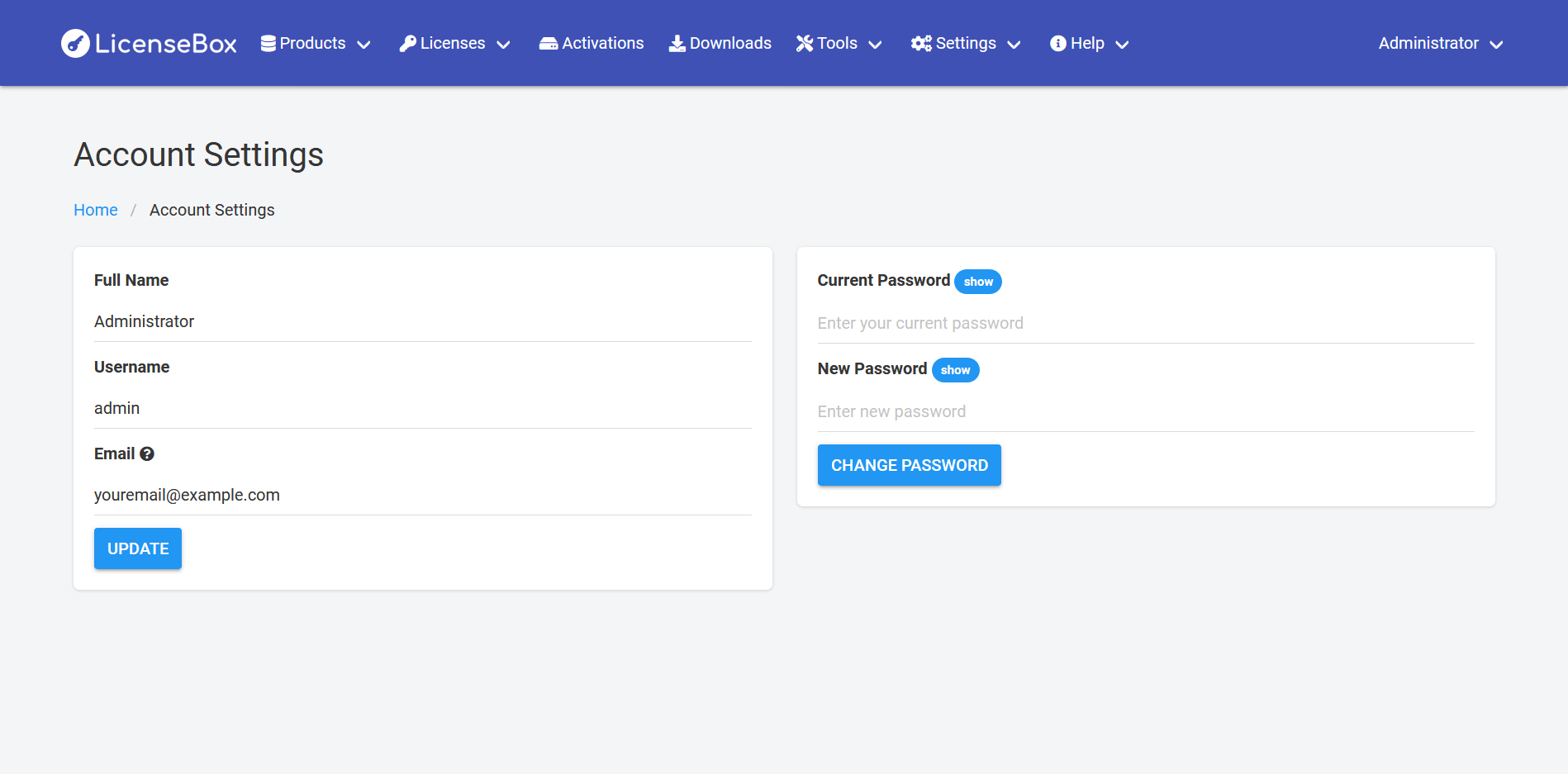
Once you are logged into the Dashboard, find Account Settings from the settings dropdown located on the menu, then change your username and password to something more secure.
-
You can also manage LicenseBox general settings from the General Settings page, there is a separate settings page for Email and API Settings, If you wish to verify Envato purchase codes of your clients then you should add your Envato API token in the general settings page (You can create a new Envato API token here, If you have not created one yet) and make sure you give it the following permissions (View your items' sales history, Verify purchases of your items)
-
Even though the LicenseBox installer will get locked automatically after the installation, it is recommended that you remove the "install" folder. You can always re-upload it, if you wish to re-install in the future.
Cron Job Setup
To enable sending of license, updates, supports expiring and new update released notifications to clients, LicenseBox cron job should run every day (recommended is running cron twice a day i.e using a common setting of Twice Per Day(0 0,12 * * *) if using cpanel). LicenseBox cron job also reverifies Envato based purchase codes (if any in the system) and it syncs changes like support expiry date change, username changes etc. Cron job can also perform auto domain, IP blacklisting (if enabled in the API settings page).
You can add a cron job using a command like this in your server crontab:
/usr/local/bin/php /home/user/public_html/path/to/licensebox/index.php cron runWhere
user is your cpanel username (if using cpanel) or account name and
path/to/licensebox should point to your LicenseBox root.
Cron job displays a brief summary after every execution, which you can get on your email by
adding your email address in the crontab while creating the cron job or you can save it in a
log file by adding >> /home/user/lb_cron.log 2>&1 at the end of your cron
command.
Next (Client Helper File Integration) ?
Please mail us your feedback at support@licensebox.app
Follow us on twitter at @LicenseBoxApp for future product
updates